Introduction
When it comes to professional networking on LinkedIn, the way your posts look can greatly influence the impression you make. Effective text formatting helps you communicate your message clearly and make it stand out in a crowded feed. Unfortunately, LinkedIn itself doesn’t offer much in the way of rich text formatting. This is where tools like linkedinpreview.com come into play, allowing you to enhance your LinkedIn posts with various formatting options before they go live. Our LinkedIn post formatter makes it easy to add bold, italics, and other styles in just a few clicks.
Available Text Formats on LinkedIn
Bold: Using bold text in your posts can make your key messages jump off the page. It’s a powerful tool for drawing attention to important statements.
Italics: Italics are great for emphasizing specific parts of your text or for quotes, adding a subtle highlight without being overbearing.
Underline: Underlining can add another layer of emphasis, especially useful in headers or important terms.
Bold Italics: Sometimes you need to stress something with a bit more punch. Combining bold and italics can give your text a compelling edge.
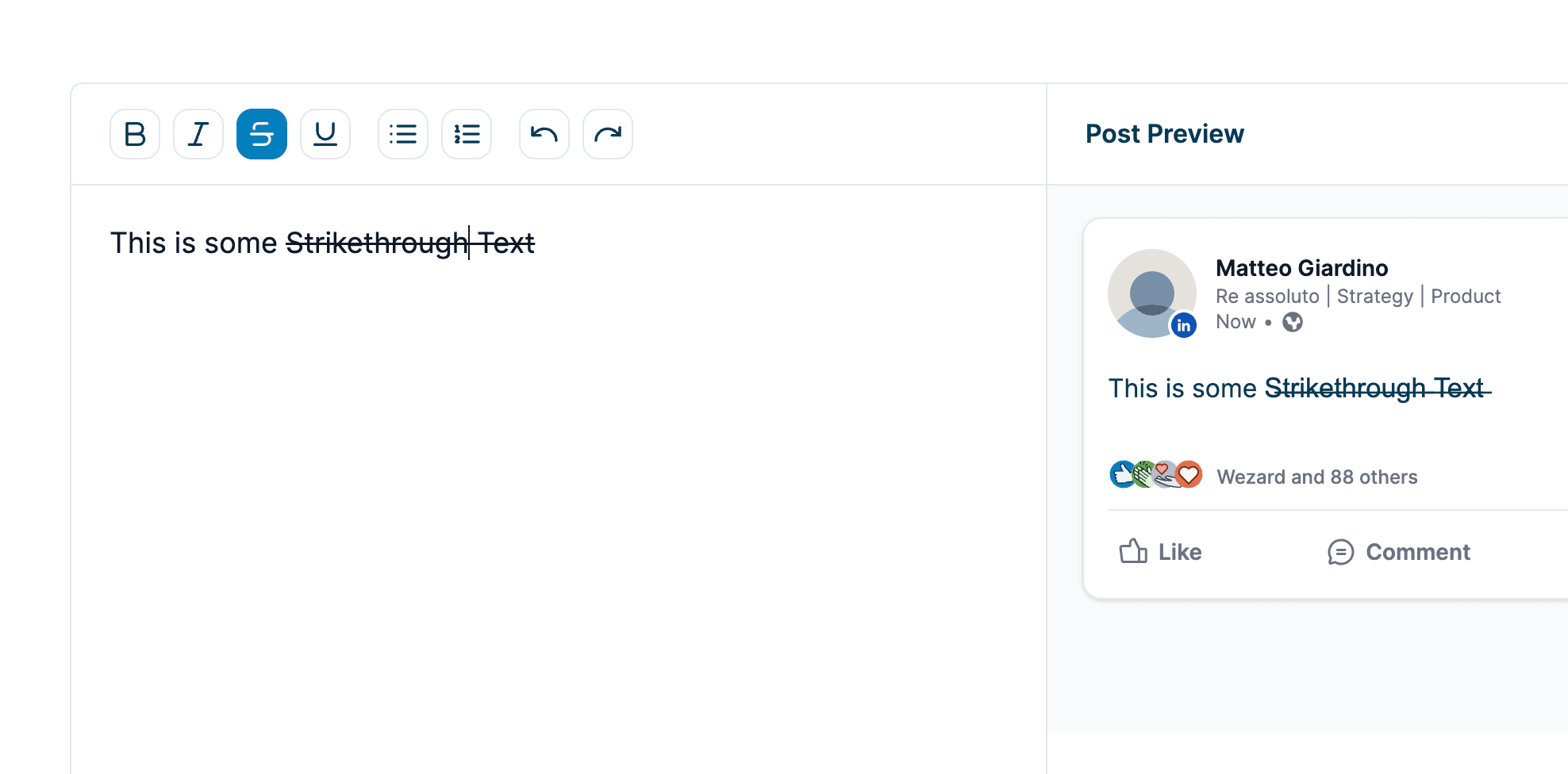
Strikethrough: This format is handy for showing updates or corrections, indicating that something has changed without removing the original text.
Bold Underline: Bold combined with underline can make certain phrases or sentences in your post really stand out, useful for titles or calls to action.
Bold Strikethrough: Using bold strikethrough can be an eye-catching way to communicate updates or changes to your audience.
How to Add Bold Text to a LinkedIn Post
Adding bold text to your LinkedIn post using linkedinpreview.com is straightforward:
- Navigate to linkedinpreview.com.
- Enter your text into the editor.
- Select the text you want to make bold.
- Click the bold icon in the editor toolbar.
- Preview how your bold text will look in the preview pane on the right.

How to Add Italics to a LinkedIn Post
Italicizing text in your LinkedIn post is just as simple:
- Start by typing your content into the linkedinpreview.com editor.
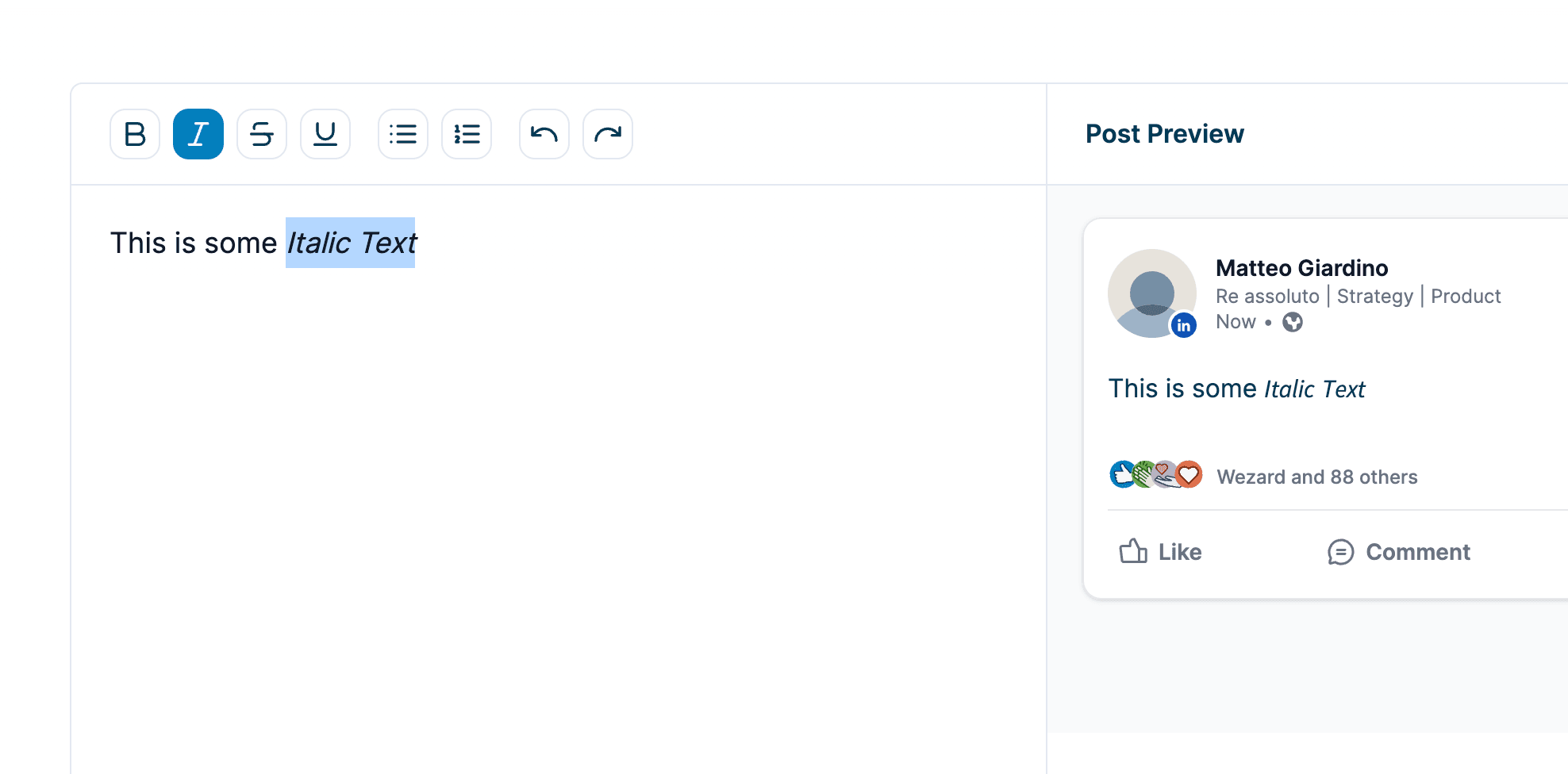
- Highlight the section of text you wish to italicize.
- Click on the italics icon from the toolbar.
- Check the preview to see how it looks and make adjustments as necessary.
How to Add Underline to a LinkedIn Post
To underline text, follow these steps:
- Input your text in the linkedinpreview.com editor.
- Highlight the text you want to underline.
- Find and click the underline button in the toolbar.
- Use the preview area to ensure your underlined text aligns with your overall message.
How to Combine Bold and Italics in a LinkedIn Post
Combining bold and italics can be done in a few clicks:
- Type your message into the editor at linkedinpreview.com.
- Select the text you want to format.
- Click both the bold and italics icons in the toolbar.
- Preview your text to ensure it stands out appropriately.
How to Apply Strikethrough in a LinkedIn Post
Applying strikethrough involves:
- Entering your text into the editor on linkedinpreview.com.
- Highlighting the text that needs strikethrough.
- Clicking the strikethrough icon.
- Previewing to check that the text communicates the intended message.
How to Combine Bold and Underline in a LinkedIn Post
To bold and underline text simultaneously:
- Write your post in the editor.
- Select the text for formatting.
- Activate both the bold and underline icons from the toolbar.
- Preview to make sure it catches the eye as you intended.
How to Combine Bold and Strikethrough in a LinkedIn Post
Combining bold and strikethrough:
- Type your update in the linkedinpreview.com editor.
- Select the part of the text to be formatted.
- Click on both the bold and strikethrough options.
- Use the preview feature to adjust the appearance.
Why Format Your LinkedIn Text
Formatted text not only captures attention but also enhances the readability of your posts, making them more engaging. Well-formatted posts are more likely to generate interactions, such as likes, comments, and shares.
Maximize the Impact of Formatted Text
Here are some tips for maximizing the impact of your formatted text:
- Use bold and italics sparingly to highlight the most crucial parts of your message.
- Underlines can be great for headings or subheadings.
- Strikethroughs should be used mainly for showing changes or updates transparently.
Using linkedinpreview.com to Preview and Format Posts
Linkedinpreview.com offers a real-time preview of your formatted text, so you can see exactly how it will look on LinkedIn before you post. This ensures your posts are error-free and visually appealing.
Conclusion
With these tools and tips at your disposal, you're well on your way to creating standout posts that can enhance your professional image on LinkedIn. Experiment with different formats to see what works best for your content and audience.
Why not give linkedinpreview.com a try for your next LinkedIn post? See the difference professional formatting can make in your engagement and professional presentation.