Your LinkedIn post's format matters just as much as what you say. The same message formatted poorly gets scrolled past. Formatted correctly, it stops the scroll and drives engagement.
Most creators focus on writing good content but ignore the structure that makes it readable. They publish walls of text, skip line breaks, or bury their hook in the first paragraph. Their posts look fine in the editor but become unreadable once published.
This guide breaks down the exact format structure high-performing LinkedIn posts follow - from hook placement to optimal length to spacing rules that work on both mobile and desktop.
What is LinkedIn Post Format?
LinkedIn post format refers to the structural layout and visual organization of your post content - not the text styling (bold, italics). It includes:
- Hook placement and length (first 1-3 lines that appear before "see more")
- Body structure (how you break up paragraphs and sections)
- Line spacing (strategic white space for readability)
- Post length (character count and where truncation happens)
- Call-to-action placement (where and how you ask for engagement)
- Visual elements (emojis, bullet points, numbered lists)
Good format makes your post scannable on mobile (where 70%+ of engagement happens), keeps readers moving through your content, and guides them to your CTA.
The Anatomy of a High-Performing LinkedIn Post
Every successful LinkedIn post follows this proven structure:
1. The Hook (First 1-3 Lines)
This is what appears before the "see more" button. You have roughly 140-210 characters to stop the scroll.
Good hook format:
Your hook statement goes here.
It should create curiosity or make a bold claim.
Keep it short - 1 to 3 lines maximum.Bad hook format:
In today's fast-paced business world, I've been thinking a lot about the importance of content strategy and how it relates to professional development on platforms like LinkedIn...The first example creates white space and delivers one clear idea per line. The second is a dense paragraph that gets ignored.
2. The Opening Context (2-4 Lines)
After the hook, give context or stakes. Why should readers care? What problem does this solve?
Here's why this matters:
[Specific reason or stat]
Most people get this wrong by [common mistake].Use line breaks strategically. Never let paragraphs run longer than 3-4 lines on LinkedIn.
3. The Body Content (Main Value)
This is where you deliver on your hook's promise. The format depends on your content type:
For stories: Short paragraphs (2-3 lines each) with clear narrative progression.
For tips/lists: Numbered points or bullet points with line breaks between each.
For insights: Short paragraphs with bold key phrases to guide scanning.
Example of well-formatted body content:
Here are 3 ways to fix this:
1. Start with your strongest point
(Not your background context)
2. Use white space like punctuation
(It makes your ideas breathable)
3. Format for mobile screens first
(That's where your audience reads)
Each point gets space to land.4. The Transition (Optional but Powerful)
Before your conclusion, add a transition line that signals you're wrapping up:
The bottom line?
Here's what this means:
So what should you do?This gives readers a moment to refocus before your CTA.
5. The Call-to-Action (Last 2-3 Lines)
End with a clear ask. Format it simply:
What's your take on this?
Drop a comment below.Or:
Found this helpful?
Repost it to help others.Single-line CTAs perform better than paragraph CTAs.
Optimal LinkedIn Post Length
LinkedIn allows up to 3,000 characters per post, but optimal length varies by content type:
- Short posts (300-600 characters): Best for quick tips, observations, questions. High engagement per impression but lower reach.
- Medium posts (600-1,200 characters): Sweet spot for most content. Enough depth to provide value without requiring a "see more" click.
- Long posts (1,200-3,000 characters): Use for stories, case studies, comprehensive guides. Requires strong hook to get readers to click "see more."
The "see more" truncation happens around 140-210 characters (varies by device and app version). This is why your hook is critical - it's often all readers see before deciding to click.
Pro tip: Most high-engagement posts stay under 1,500 characters. If you need more space, consider a carousel post or linking to an article.
Line Break and Spacing Rules
LinkedIn's formatting quirks make spacing critical:
Rule 1: Line Breaks Create Hierarchy
Use single line breaks between related thoughts:
First point here.
Second related point.Use double line breaks to separate sections:
Main idea one.
Main idea two (completely different topic).Rule 2: Never Go More Than 3-4 Lines Without a Break
Long paragraphs look like walls of text on mobile. Break them up.
Bad:
This is a long paragraph that keeps going and going without any breaks and by the time readers get to the end they've forgotten what the beginning was about and they've probably stopped reading halfway through anyway.Good:
This is a long paragraph.
But I'm breaking it into digestible chunks.
Each chunk is easy to scan.
Each chunk has one idea.Rule 3: Use Empty Lines Strategically
Empty lines create visual breathing room:
Big idea one.
Big idea two.
Big idea three.This format makes your post scannable even when readers aren't reading every word.
Formatting Elements That Improve Post Structure
Beyond basic spacing, these formatting elements help organize your content:
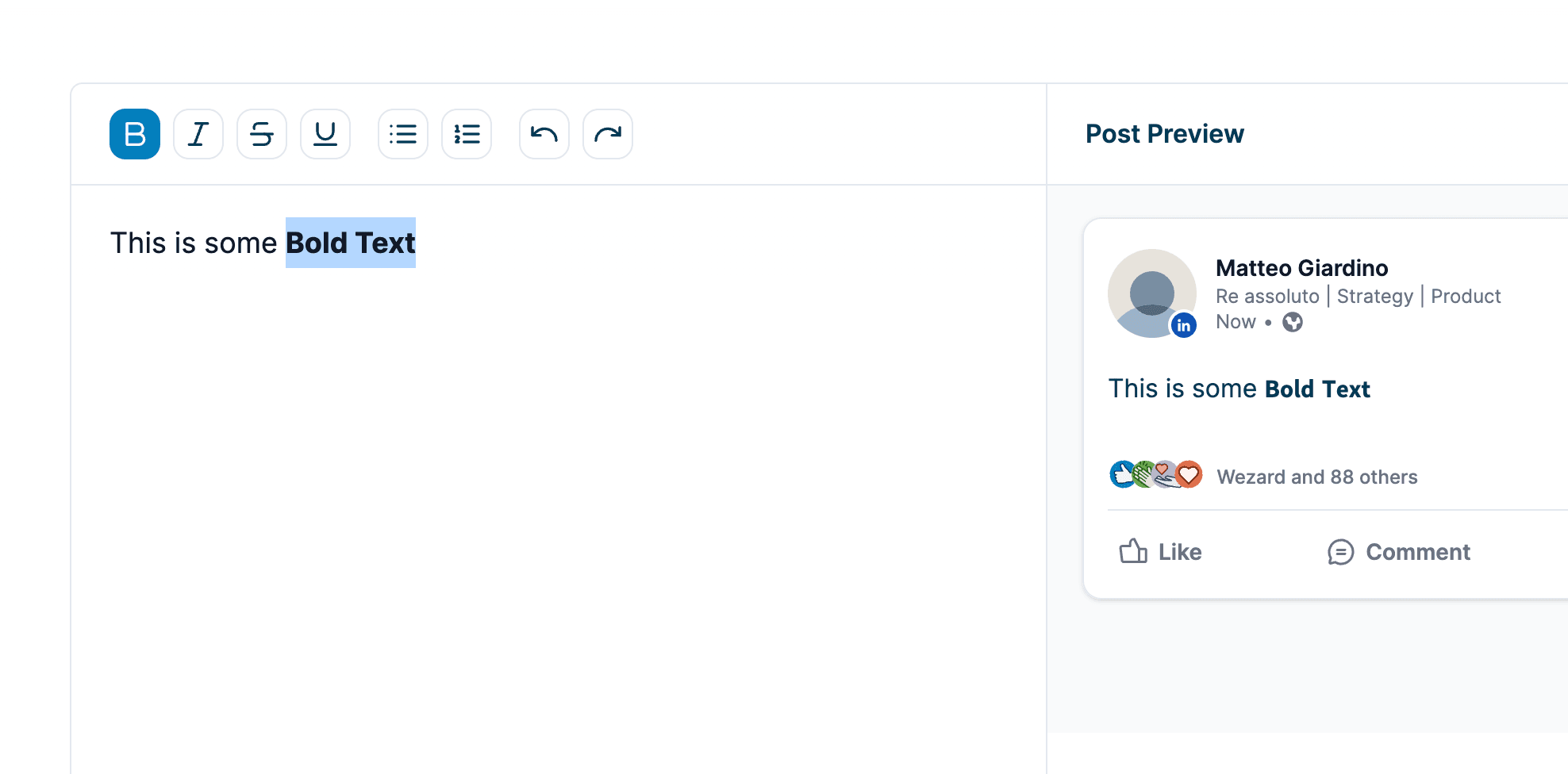
Bold Text for Key Phrases
Use bold to highlight important points and guide skimmers to your main ideas. Don't bold entire sentences - just the key phrase.
Example:
The biggest mistake? Publishing without previewing.
Most creators skip the preview step and **publish directly on LinkedIn**. Then they see formatting issues after it's live.Learn how to add bold text to LinkedIn posts
Bullet Points and Numbered Lists
Lists create visual structure and make your post scannable:
Here's what works:
• Short, punchy bullet points
• Clear value in each line
• Strategic spacing between itemsHow to add bullet points to LinkedIn posts
Strategic Emoji Use
Emojis can replace traditional section headers and create visual anchors:
🎯 The Goal: Get 10 comments per post
💡 The Strategy: Ask specific questions
✅ The Result: Higher engagement = more reachDon't overdo it. 2-4 emojis per post maximum.
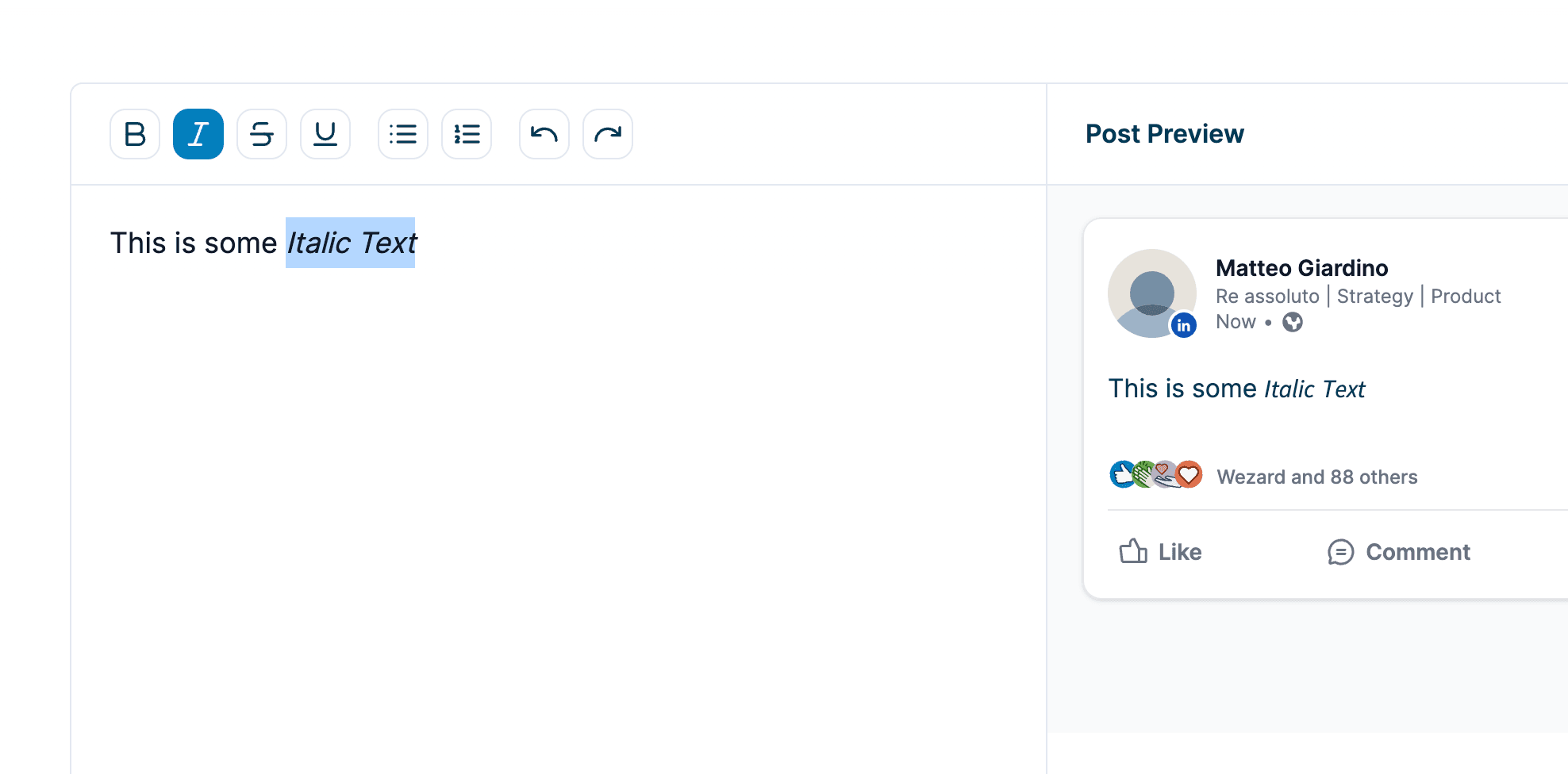
Italics for Emphasis or Quotes
Italics work well for subtle emphasis or to set apart quotes and examples.
Here's what one creator told me:
*"I changed my post format and my engagement doubled. Same content, different structure."*How to add italics to LinkedIn posts
The Mobile-First Format Rule
70% of LinkedIn engagement happens on mobile. Format your posts for phone screens first, desktop second.
What This Means:
- Shorter paragraphs - 2-3 lines max (they look longer on mobile)
- More line breaks - White space is even more important on small screens
- Scannable structure - Use bold, lists, and clear sections
- Strong hook - Mobile users decide to click "see more" in 2 seconds
How to Check Mobile Format:
Don't trust how your post looks in the desktop composer. Use a preview tool to see the actual mobile layout before publishing.
The LinkedIn mobile app often renders spacing and line breaks differently than the desktop version. What looks perfect on desktop can turn into a text wall on mobile.
Common LinkedIn Post Format Mistakes
Mistake 1: Burying the Hook
Starting with context instead of your strongest statement:
Bad:
Over the past few months, I've been reflecting on my journey in content marketing and wanted to share some thoughts about what I've learned...Good:
I grew my LinkedIn following by 10,000 in 90 days.
Here's the exact strategy:Lead with impact, not setup.
Mistake 2: No White Space
Publishing dense paragraphs without line breaks:
This is hard to read because there are no breaks and everything runs together and mobile users will scroll past immediately without reading a single word because it looks like work.Add line breaks. Create breathing room.
Mistake 3: Weak CTA Placement
Hiding your call-to-action in the middle of your conclusion:
Bad:
So that's my take on this topic and I hope you found it valuable and if you did please let me know in the comments and also feel free to repost if you think others would benefit from this content too.Good:
What's your biggest challenge with LinkedIn content?
Drop a comment - I read every one.Make your ask clear and simple.
Mistake 4: Ignoring the "See More" Break
Writing your best content after the truncation point without a strong hook:
If your hook doesn't create curiosity, readers won't click "see more" to read your valuable content. The format needs to earn that click.
Mistake 5: Inconsistent Spacing
Random line breaks that create visual chaos:
Some sections have breaks.
Others don't.
And some have too many.
Like this.Be consistent. Use line breaks deliberately, not randomly.
LinkedIn Post Format Templates
Here are proven format templates for different content types:
Template 1: The Insight Post
[Bold opening statement]
Here's why this matters:
[2-3 lines of context]
The problem most people face:
[Describe the challenge]
What works instead:
[Your solution or insight]
[2-3 supporting points with line breaks]
Bottom line?
[Key takeaway]
[Clear CTA]Template 2: The Story Post
[Intriguing hook - what happened]
Here's the context:
[Set the scene in 2-3 lines]
[Story unfolds in short paragraphs]
[Each paragraph = one story beat]
[2-3 lines per paragraph max]
What I learned:
[Lesson or insight]
[Relatable CTA]Template 3: The List Post
[Hook: promise of the list]
Here's what works:
1. [First point]
[Brief explanation]
2. [Second point]
[Brief explanation]
3. [Third point]
[Brief explanation]
[Transition line]
[CTA that invites discussion]Template 4: The Question Post
[Provocative question]
Most people answer: [Common response]
But here's what actually works:
[Your perspective in 3-5 short paragraphs]
So what's your take?
[Invite specific responses]How to Format LinkedIn Posts (Step by Step)
Follow this process to format any LinkedIn post correctly:
Step 1: Write Your Content First
Don't worry about format while writing your first draft. Get your ideas down, then format them.
Step 2: Add Your Hook
Pull your strongest statement to the top. Make it 1-3 lines maximum. This is what appears before "see more."
Step 3: Break Up Paragraphs
Go through your draft and add line breaks. No paragraph should be longer than 3-4 lines. Create white space.
Step 4: Add Formatting Elements
Add bold to key phrases. Convert lists to bullet points or numbers. Insert strategic emojis if relevant.
Step 5: Preview Before Publishing
Use a LinkedIn post preview tool to see exactly how your formatted post will render on mobile and desktop.
Check our free LinkedIn preview tool that shows you the exact mobile and desktop layout before you publish.
Step 6: Test on Mobile
If possible, preview on an actual mobile device. The LinkedIn mobile app sometimes renders spacing differently than preview tools.
Step 7: Publish and Monitor
After publishing, check how it actually looks on both mobile and desktop. Note what worked and what didn't for your next post.
LinkedIn Post Format Best Practices
Best Practice 1: Front-Load Your Value
Put your most important point in the first 3 lines (before "see more"). If readers don't click, they should still get value from your hook.
Best Practice 2: Use Consistent Formatting
Develop a signature format and stick to it. Your audience will recognize your posts in the feed.
Best Practice 3: Format for Skimmers
Most readers skim. Use bold, line breaks, and clear structure so skimmers still get your main points.
Best Practice 4: Test Different Lengths
Track engagement by post length. Some topics work better as short posts (under 600 characters), others need more space.
Best Practice 5: Watch Your Analytics
LinkedIn shows you how many people clicked "see more" on your posts. Low click-through means your hook format needs work.
Best Practice 6: Study High-Performers
Look at posts in your feed with high engagement. Analyze their format structure. What makes them readable?
Frequently Asked Questions
How long should a LinkedIn post be?
The optimal length is 600-1,200 characters for most posts. This provides enough depth without requiring readers to click "see more." Longer posts (up to 3,000 characters) work for stories and comprehensive guides if you have a strong hook.
How many line breaks should I use?
Use enough line breaks to keep paragraphs under 3-4 lines. Add double line breaks between distinct sections or topics. More white space is better than too little on LinkedIn.
Should I format my post with bold and italics?
Yes, but sparingly. Bold key phrases to guide readers to your main points. Use italics for quotes or subtle emphasis. Don't bold entire paragraphs - it defeats the purpose.
What's the "see more" character limit on LinkedIn?
The "see more" truncation happens around 140-210 characters, depending on device and LinkedIn app version. Your hook should be 1-3 lines within this limit.
Does post format affect LinkedIn algorithm reach?
Indirectly, yes. Well-formatted posts get more engagement (likes, comments, shares) because they're easier to read. Higher engagement signals quality to the algorithm, which increases reach.
Can I edit my post format after publishing?
Yes, but LinkedIn limits editing in the first 10 minutes after publishing. After that, you can edit freely, but you'll lose some early engagement momentum. Better to format correctly before publishing.
Should I use emojis in my LinkedIn post format?
Emojis can improve scannability when used strategically (2-4 per post). Use them as visual section markers or to add personality. Avoid overuse - LinkedIn is still a professional platform.
How do I know if my post format will look good on mobile?
Use a LinkedIn post preview tool that shows both desktop and mobile layouts. Don't trust how it looks in the LinkedIn composer - that's desktop-only and doesn't match the final published format.
Final Thoughts
LinkedIn post format is simple: short paragraphs, strategic line breaks, strong hooks, clear CTAs. The same content formatted poorly gets ignored. Formatted well, it drives engagement.
Most creators overlook format because they focus only on what they're saying, not how it looks when readers scroll past it on their phones. Fix your format and your engagement will improve immediately.
Preview your posts before publishing. See how they actually look on mobile. Adjust the spacing and structure until it's scannable and readable. That's the difference between posts that get scrolled past and posts that get read.
Related posts: